
Author: Daljit Singh Published: May 3, 2026 Last Reviewed: May 3, 2026 Reading Time: ~12 min Series: Frontend Fundamentals
New to frontend development? If you have not built a webpage before, I highly recommend starting from the beginning: → HTML & CSS Complete Beginner’s Guide: Build Your First Website Today
In that article, I cover HTML structure, the CSS box model, an introduction to Flexbox, and responsive design with media queries — all with working code you build from scratch.
Quick refresher if you are coming from there:
- HTML gives a page structure. CSS controls how it looks.
- Every HTML element is a rectangular box with content, padding, border, and margin.
display: flexturns an element into a flex container, arranging its children in a row or column along a single axis.- Media queries apply styles conditionally based on screen width — the foundation of responsive design.
That is all you need to follow this article. Let us pick up from there.
The Question Every Frontend Developer Gets Wrong
Most beginners treat Flexbox and CSS Grid as interchangeable — two different ways to do the same thing, where you pick whichever you saw in the last tutorial. That is not how they work.
Flexbox and Grid solve different layout problems. Using the wrong one does not mean your layout breaks — CSS is forgiving enough that you can usually force either tool to produce the result you want. But it does mean your code becomes harder to read, harder to maintain, and harder to make responsive. Every working frontend developer eventually internalizes the distinction. This article gets you there faster.
The clearest version of the distinction, from the MDN Web Docs — the reference documentation maintained by Mozilla, used by developers worldwide:
Flexbox is designed for one-dimensional layout — either a row or a column. CSS Grid is designed for two-dimensional layout — rows and columns simultaneously.
That one sentence explains about 80% of the decision. The remaining 20% is what this article is for.
How Flexbox Thinks
Flexbox thinks about content. You put elements into a flex container and tell them how to arrange themselves along a single axis. The container responds to whatever is inside it — elements grow, shrink, and wrap based on available space and the rules you set.
This content-driven nature makes Flexbox excellent for:
- Navigation bars where items need to sit side by side
- Card rows that should wrap to the next line when the screen is narrow
- Centering a single element — horizontally, vertically, or both
- Distributing space evenly between buttons in a toolbar
- Aligning form labels and inputs on the same baseline
Here is the mental test: if you are thinking about arranging items along a line — one direction — reach for Flexbox.
Flexbox in Practice: A Navigation Bar
This is the most common real-world use of Flexbox. You have a logo on the left and navigation links on the right. They need to sit on the same horizontal line, vertically centered, regardless of how much text each link contains.
<header class="site-header">
  <a href="/" class="logo">BasicWeb</a>
  <nav class="primary-nav">
    <a href="/tutorials">Tutorials</a>
    <a href="/guides">Guides</a>
    <a href="/about">About</a>
  </nav>
</header>
.site-header {
  display: flex;
  justify-content: space-between;  /* logo left, nav right */
  align-items: center;             /* both vertically centered */
  padding: 16px 40px;
  background-color: #1a1a2e;
}

.logo {
  color: #ffffff;
  font-size: 1.25rem;
  font-weight: 700;
  text-decoration: none;
}

.primary-nav {
  display: flex;
  gap: 32px;
}

.primary-nav a {
  color: #ffffff;
  text-decoration: none;
  font-size: 0.95rem;
  opacity: 0.85;
  transition: opacity 0.2s ease;
}

.primary-nav a:hover {
  opacity: 1;
}
Notice that the <nav> is itself a flex container — flex containers can
be nested inside other flex containers. The outer header uses
justify-content: space-between to push the logo and nav to opposite ends.
The inner nav uses gap: 32px to space the links evenly.
Two flex containers. One clean, readable navigation bar.
Flexbox in Practice: Wrapping Card Row
.card-row {
  display: flex;
  flex-wrap: wrap;
  gap: 24px;
}

.card {
  flex: 1 1 280px;
  /* grow: 1, shrink: 1, basis: 280px
     — each card starts at 280px, grows to fill space,
       wraps when there is not enough room */
  background: #ffffff;
  border: 1px solid #e0e0e0;
  border-radius: 8px;
  padding: 24px;
}
flex: 1 1 280px is the full three-value shorthand:
flex-grow: 1 (grow to fill available space),
flex-shrink: 1 (shrink if needed),
flex-basis: 280px (start at 280px before growing or shrinking).
This is meaningfully different from the flex: 1 shorthand used in
Article 1, which sets flex-basis to 0 — meaning items start from
nothing and divide space purely proportionally. With flex-basis: 280px,
each card has a guaranteed minimum width before flex kicks in. When the
container is not wide enough to fit two 280px cards with a 24px gap,
the second card wraps to a new row automatically.
This is responsive behavior without a media query. The content drives the layout.
How CSS Grid Thinks
CSS Grid thinks about layout. You define a structure — rows, columns, named areas — and then place content into it. The layout exists independently of what is inside it. You are designing a page architecture first, then filling it.
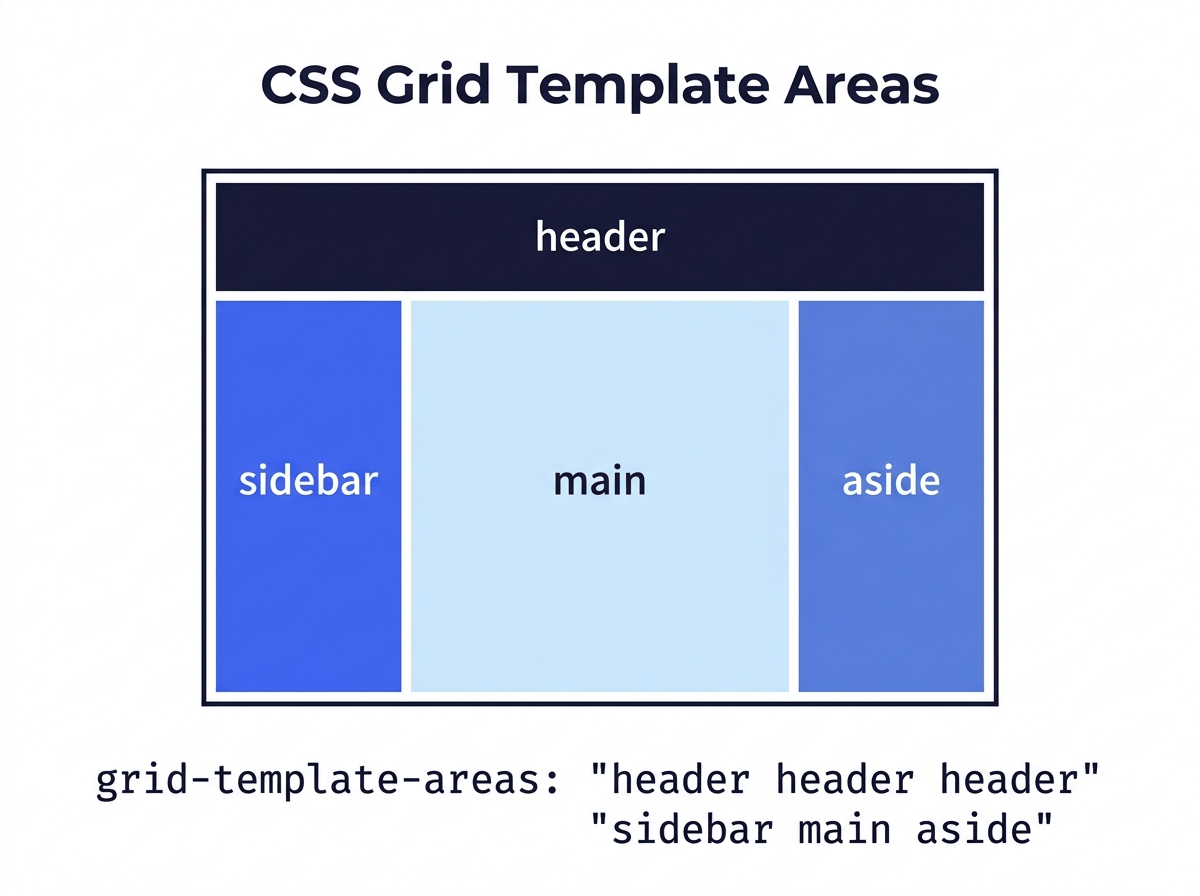
This layout-driven nature makes Grid excellent for:
- Full page layouts with a header, sidebar, main content area, and footer
- Image galleries with consistent rows and columns
- Dashboard UI with multiple widgets that need to align precisely
- Any layout where items need to align on both horizontal and vertical axes
- Asymmetric layouts where different items span different numbers of columns
Here is the mental test: if you are thinking about the overall structure of a page or component — rows and columns — reach for Grid.
CSS Grid in Practice: A Page Layout
This is the pattern you will use more than any other — a full page layout with a header, sidebar, main content, and footer.
<div class="page-layout">
  <header class="page-header">Header</header>
  <aside class="sidebar">Sidebar</aside>
  <main class="main-content">Main Content</main>
  <footer class="page-footer">Footer</footer>
</div>
.page-layout {
  display: grid;
  grid-template-columns: 240px 1fr;
  grid-template-rows: auto 1fr auto;
  grid-template-areas:
    "header  header"
    "sidebar main"
    "footer  footer";
  min-height: 100vh;
  gap: 0;
}

.page-header {
  grid-area: header;
  background-color: #1a1a2e;
  color: white;
  padding: 20px 40px;
}

.sidebar {
  grid-area: sidebar;
  background-color: #f0f2f5;
  padding: 32px 24px;
  border-right: 1px solid #e0e0e0;
}

.main-content {
  grid-area: main;
  padding: 40px;
  max-width: 800px;
}

.page-footer {
  grid-area: footer;
  background-color: #1a1a2e;
  color: #aaa;
  text-align: center;
  padding: 20px;
  font-size: 0.875rem;
}
Let us go through what is happening here.
grid-template-columns: 240px 1fr defines two columns: the first is
a fixed 240 pixels wide (the sidebar), the second takes all remaining space
(1fr — one fraction of the available space). The fr unit is unique to
CSS Grid and does not exist in Flexbox. It divides remaining space
proportionally, similar to how flex-grow works, but applied to the
explicit grid structure you have defined.
grid-template-rows: auto 1fr auto defines three rows: the header
and footer shrink to fit their content (auto), and the middle row
expands to fill all remaining vertical space (1fr).
grid-template-areas is where Grid becomes genuinely readable.
Each string represents a row. Each word within a string represents a cell
in that row. The same word spanning multiple cells means that element
spans those cells. The header spans both columns — "header header".
The footer spans both columns — "footer footer". The sidebar and main
each occupy one column in the middle row.
Then grid-area: header on the header element tells it: you belong in
the region named header. That is the entire placement instruction.
Compare this to how you would produce the same layout with Flexbox — it requires nested containers, careful margin calculations, and a level of indirection that makes the intent of the layout much harder to read. Grid states the layout intention directly.
CSS Grid in Practice: A Responsive Image Gallery
.gallery {
  display: grid;
  grid-template-columns: repeat(auto-fill, minmax(200px, 1fr));
  gap: 16px;
}

.gallery img {
  width: 100%;
  height: 200px;
  object-fit: cover;
  border-radius: 4px;
  display: block;
}
repeat(auto-fill, minmax(200px, 1fr)) is one of the most useful
patterns in CSS Grid. Breaking it down:
repeat()tells Grid to repeat a column definitionauto-fillmeans: create as many columns as will fit without overflowminmax(200px, 1fr)means: each column is at least 200px wide, and expands to take equal fractions of remaining space
The result: on a wide screen, you get five or six columns. On a tablet, three or four. On a phone, one or two. Zero media queries. The grid recalculates itself based on available space.
This is the Grid equivalent of Flexbox’s flex-wrap behavior — but because
Grid is aware of both axes simultaneously, it maintains consistent row
heights across all columns automatically. In Flexbox, items in a wrapped
row do not align with items in other rows. In Grid, they do.
The Real Decision Framework
Here is the decision as a working rule, not a principle:
| Situation | Use |
|---|---|
| Navigation bar items in a row | Flexbox |
| Centering one element inside another | Flexbox |
| Buttons or tags that should wrap to the next line | Flexbox |
| Full page layout (header, sidebar, main, footer) | Grid |
| Dashboard with multiple widget areas | Grid |
| Image or card gallery with consistent rows | Grid |
| Form with labels and inputs aligned in columns | Grid |
| You know the items but not the container size | Flexbox |
| You know the container structure, then fill it | Grid |
The last two rows are the most useful heuristic. Flexbox is content-out — you start with items and let the container respond. Grid is layout-in — you start with the container structure and place content into it.
This framing comes directly from Rachel Andrew’s work at web.dev, one of the primary contributors to the CSS Grid specification. She describes it as the difference between “starting from the content” versus “starting from the grid.”
Using Both Together: The Real-World Pattern
The correct question is rarely “Flexbox or Grid?” Professional CSS uses both — often in the same component. Grid defines the macro layout of the page. Flexbox handles the micro layout of individual components within it.
Here is what that looks like in practice:
/* Grid handles the overall page structure */
.page-layout {
  display: grid;
  grid-template-columns: 240px 1fr;
  grid-template-areas:
    "header header"
    "sidebar main"
    "footer footer";
}

/* Flexbox handles the header's internal layout */
.page-header {
  grid-area: header;
  display: flex;
  justify-content: space-between;
  align-items: center;
  padding: 16px 40px;
}

/* Flexbox handles the card row within main content */
.card-row {
  display: flex;
  flex-wrap: wrap;
  gap: 24px;
}
Grid places the header in the layout. Flexbox arranges the logo and navigation inside the header. Grid defines where the main content region lives. Flexbox handles the cards within it. Neither tool is trying to do the other’s job.
Browser Support: Not a Concern in 2026
A common question from developers who learned CSS five or more years ago is whether Grid has sufficient browser support. The answer, per Can I Use data as of 2026, is yes — CSS Grid has 99%+ global browser support. Internet Explorer 11 had a partial, prefixed implementation that is now irrelevant for the vast majority of projects. You can use Grid in production without a compatibility concern.
Source: Can I Use — CSS Grid Layout, caniuse.com/css-grid
Frequently Asked Questions
Can I use Flexbox to build a full page layout?
Technically yes. Practically, do not. Flexbox was not designed for two-dimensional layout, and building a full page layout with it requires nested containers, percentage-based widths, and careful margin calculations that become fragile when content changes. Grid produces the same result with clearer, more maintainable code. Use the right tool.
Can I use Grid for a simple navigation bar?
You can — display: grid; grid-auto-flow: column achieves a similar
result to a Flexbox row. But Flexbox’s justify-content, align-items,
and gap properties were built specifically for this pattern and read
more clearly. Other developers reading your code will expect navigation
bars to use Flexbox. Follow the convention.
Does CSS Grid replace Flexbox?
No. Grid was not designed to replace Flexbox — it was designed to solve the layout problems Flexbox was never meant to handle. The W3C CSS Working Group, which maintains both specifications, is explicit on this point. They are complementary tools, not competing ones.
What is the fr unit?
fr stands for “fraction” and is a unit unique to CSS Grid. It represents
a fraction of the available space in the grid container after any fixed
widths and gaps have been subtracted. grid-template-columns: 1fr 2fr
creates two columns where the second is twice as wide as the first.
It does not exist in Flexbox — the closest equivalent is flex-grow.
Which should I learn first?
Flexbox. It has a smaller surface area, handles the most common layout
tasks beginners encounter, and the mental model is simpler. Once
justify-content and align-items feel natural, Grid’s two-dimensional
thinking clicks much faster. Most developers are comfortable with both
after two to three months of building real things.
How do I vertically center something with each?
With Flexbox:
.container {
  display: flex;
  justify-content: center; /* horizontal center */
  align-items: center;     /* vertical center */
  height: 100vh;
}
With Grid:
.container {
  display: grid;
  place-items: center;     /* centers on both axes — shorthand */
  height: 100vh;
}
place-items: center is Grid’s shorthand for
align-items: center; justify-items: center. It is the most concise way
to center anything in CSS.
What to Read Next
The next step is understanding how both Flexbox and Grid behave across different screen sizes — which means going deeper on responsive design and media queries than the introduction in Article 1.
→ [Responsive Web Design Explained: Media Queries & Mobile-First CSS — coming soon]
After that, JavaScript — the third layer of the web, and the one that makes pages do things rather than just display things.
→ [JavaScript for Beginners: Variables, Functions & DOM Explained — coming soon]
Sources
- MDN Web Docs. CSS Flexible Box Layout. developer.mozilla.org/en-US/docs/Web/CSS/CSS_flexible_box_layout
- MDN Web Docs. CSS Grid Layout. developer.mozilla.org/en-US/docs/Web/CSS/CSS_grid_layout
- W3C. CSS Flexible Box Layout Module Level 1. w3.org/TR/css-flexbox-1/
- W3C. CSS Grid Layout Module Level 1. w3.org/TR/css-grid-1/
- Andrew, R. Grid by Example. gridbyexample.com
- Andrew, R. Box alignment in CSS Grid Layout. web.dev/articles/grid
- Can I Use. CSS Grid Layout browser support. caniuse.com/css-grid
- Can I Use. CSS Flexible Box Layout browser support. caniuse.com/flexbox
- Coyier, C. A Complete Guide to Flexbox. css-tricks.com/snippets/css/a-guide-to-flexbox/ (CSS-Tricks, now part of DigitalOcean)
- Coyier, C. A Complete Guide to CSS Grid. css-tricks.com/snippets/css/complete-guide-grid/
All code in this article was written and tested by the author. Browser support data verified May 2026.
About the Author: Daljit Singh is an independent cybersecurity researcher-consultant & Director at Nexsage Technologies with more than a decade of experience building production systems. He is completing an MSc in Cybersecurity at IU International University of Applied Sciences. At BasicWeb, he writes for people who want to understand what they are building, not just copy code until something works. This is his small attempt to give back to the community by sharing what he has learned over the years.
Subscribe Newsletter
Get notified when future articles are published