
Author: Daljit Singh Published: May 5, 2026 Last Reviewed: May 12, 2026 Reading Time: ~14 min Series: Frontend Fundamentals
New to web development? This article is Part 3 of the Frontend Fundamentals series. If you have not built a webpage yet, start here: → HTML & CSS Complete Beginner’s Guide: Build Your First Website Today
Already comfortable with HTML and CSS layout? You may also want: → CSS Flexbox vs. Grid: When to Use Each Layout Method
Quick refresher from those articles:
- HTML defines structure. CSS controls appearance. Together they produce a styled, static webpage.
- The CSS box model gives every element content, padding, border, and margin.
- Flexbox arranges items along one axis. Grid manages two-dimensional page layouts.
- Media queries make layouts adapt to different screen sizes.
JavaScript is the third layer. It is what makes a webpage respond, react, and change — without loading a new page. That is where we are going.
What JavaScript Actually Does (That HTML and CSS Cannot)
HTML and CSS are declarative languages. You write what you want the page to look like, and the browser renders it. Nothing changes after the page loads unless the user navigates to a different URL.
JavaScript is different. It is a full programming language that runs inside the browser, and it can read the page, change the page, respond to what the user does, and communicate with servers — all without a page reload. Every interactive element you have used on the web — dropdown menus, form validation, live search results, modal windows, shopping carts that update without refreshing — is JavaScript.
Brendan Eich created JavaScript in 1995 in ten days at Netscape. It has since become the most widely used programming language in the world, according to the Stack Overflow Developer Survey 2024, which found JavaScript at the top of the “most used technology” list for the twelfth consecutive year. It runs in every major browser without installation. It is the only programming language that does.
Understanding why JavaScript exists — and what problem it solves — matters before writing a single line of it. You are not just learning syntax. You are learning how to make static documents dynamic.
Setting Up: Where JavaScript Lives
You do not need any new tools. Open the project folder from Article 1
(my-first-website) in VS Code. You have index.html and style.css
already. Now create one more file: script.js.
Link it to your HTML by adding this line just before the closing
</body> tag — not in the <head>:
    <!-- add this just before </body> -->
    <script src="script.js"></script>
  </body>
</html>
The placement is intentional. Scripts linked in the <head> are
downloaded and executed before the browser has built the page —
which means JavaScript trying to interact with elements that do not
exist yet. Placing the script at the bottom of <body> ensures the
entire HTML is parsed and available before JavaScript runs.
This is the traditional approach and still the correct default for
beginners. (The modern alternative — the defer attribute on a
<script> tag in <head> — achieves the same result differently.
We will cover that in a future article.)
Open script.js and add one line to confirm everything is connected:
console.log("JavaScript is connected.");
Save the file. Open your browser, load index.html, then open
DevTools (right-click anywhere → Inspect → Console tab). You should
see “JavaScript is connected.” in the console. That is JavaScript
running in your browser. Everything that follows builds on that.
Part 1: Variables — How JavaScript Stores Information
A variable is a named container for a value. You give it a name, assign it a value, and then use that name to refer to the value later in your code.
JavaScript has three ways to declare a variable: var, let,
and const. You will use two of them.
const siteName = "BasicWeb";
let articleCount = 4;

console.log(siteName);      // BasicWeb
console.log(articleCount);  // 4
const declares a variable whose reference cannot be reassigned
after it is set. Use it for values that should not change: a site name,
a configuration value, a DOM element you selected once and will keep
using. const is the right default.
let declares a variable that can be reassigned. Use it when the
value genuinely needs to change — a counter that increments, a running
total, a value that updates based on user input.
var is the original declaration keyword from 1995. It has
scoping behavior that causes bugs that are hard to trace — specifically,
var is function-scoped rather than block-scoped, which means it
leaks out of if blocks and for loops in ways that feel wrong.
The MDN Web Docs and every modern JavaScript style guide recommend
avoiding var in favor of const and let. Do not use it.
Data Types
Every value in JavaScript has a type. The ones you will use most often:
// String — text, wrapped in quotes
const language = "JavaScript";
const greeting = 'Hello, world';      // single quotes also work
const template = `Learning ${language}`; // template literal — backticks

// Number — integers and decimals, no distinction
const year = 2026;
const version = 3.14;

// Boolean — true or false, nothing else
const isPublished = true;
const isDraft = false;

// Array — an ordered list of values
const topics = ["HTML", "CSS", "JavaScript"];
console.log(topics[0]); // "HTML" — arrays start at index 0

// Object — a collection of named properties
const article = {
  title: "JavaScript for Beginners",
  wordCount: 2200,
  published: true
};
console.log(article.title); // "JavaScript for Beginners"
The template literal syntax — backticks with ${expression} — is
worth noting specifically. It lets you embed variables directly inside
strings without string concatenation. "Hello, " + name + "!" becomes
`Hello, ${name}!`. It is cleaner, and you will use it constantly.
const Does Not Mean Immutable
One thing that trips up beginners: const prevents reassignment of the
variable, but it does not make the value itself immutable.
const topics = ["HTML", "CSS", "JavaScript"];
topics.push("React");         // this works — modifying the array
topics = ["Vue"];             // TypeError — reassigning the variable

const article = { title: "JS Basics" };
article.title = "JavaScript Basics";  // this works — modifying the object
article = { title: "Other" };         // TypeError — reassigning
const means the binding — the connection between the name and the
value — is fixed. The value itself, if it is an object or array, can
still be modified. This distinction matters as soon as you start
working with DOM elements and event handlers.
Part 2: Functions — Reusable Blocks of Logic
A function is a named, reusable block of code. You define it once and call it whenever you need it — with different inputs each time if needed.
// Function declaration
function greet(name) {
  return `Hello, ${name}. Welcome to BasicWeb.`;
}

console.log(greet("Daljit")); // Hello, Daljit. Welcome to BasicWeb.
console.log(greet("Alex"));   // Hello, Alex. Welcome to BasicWeb.
name is a parameter — a placeholder for a value that will be
provided when the function is called. "Daljit" and "Alex" are
arguments — the actual values passed in. The function uses
return to send a value back to wherever it was called from.
Arrow Functions
Modern JavaScript introduced a shorter syntax for functions called arrow functions:
// Traditional function
function double(number) {
  return number * 2;
}

// Arrow function — equivalent
const double = (number) => number * 2;

// With one parameter, parentheses are optional
const double = number => number * 2;

// With multiple lines, use curly braces and explicit return
const formatArticle = (title, count) => {
  const summary = `${title} — ${count} words`;
  return summary;
};
Arrow functions are not just shorter — they handle the this keyword
differently from traditional functions in ways that matter when you
start working with event handlers and classes. For now, know that arrow
functions are the standard syntax in modern JavaScript code and in
every framework you will encounter later.
Functions as Values
In JavaScript, functions are values. You can store them in variables, pass them to other functions, and return them from functions. This is what makes event handling — responding to clicks, key presses, form submissions — possible.
// A function stored in a variable
const sayHello = () => console.log("Hello from BasicWeb");

// Passing a function as an argument to another function
setTimeout(sayHello, 2000); // calls sayHello after 2 seconds
setTimeout is a built-in browser function that takes two arguments:
a function to call, and a delay in milliseconds. You are passing
sayHello as a value — not calling it (no parentheses) — so
setTimeout can call it later. This pattern — passing a function
to be called later — is called a callback, and it is everywhere
in JavaScript.
Part 3: The DOM — The Bridge Between JavaScript and Your Page
This is where everything comes together and becomes immediately useful.
The DOM (Document Object Model) is the browser’s internal
representation of your HTML page as a tree of objects. When the browser
parses your HTML, it builds a tree where every element — every <h1>,
<p>, <button>, <div> — becomes a node in that tree. JavaScript
can access, read, modify, add, and remove any of those nodes.
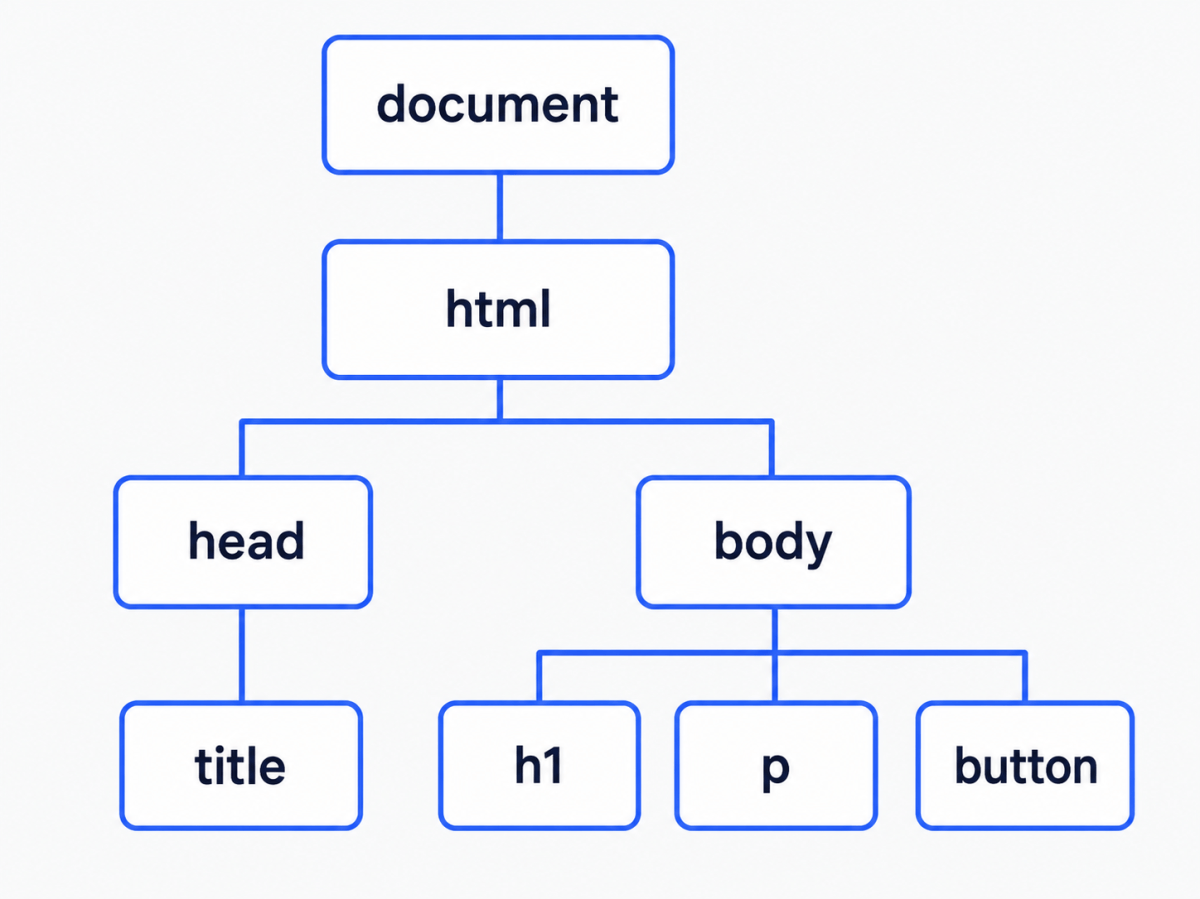
This is documented in the W3C DOM specification, which defines the
standard interface that all browsers implement. When you write
document.querySelector("h1") in JavaScript, you are using this
standard interface to reach into the DOM and get the <h1> node.
Think of it this way: HTML builds the DOM when the page loads. JavaScript manipulates the DOM after the page loads. CSS styles whatever is in the DOM at any given moment. The three technologies work as a system, not independently.
Selecting Elements
Before you can change anything on the page, you need to select it.
// Select the first matching element
const heading = document.querySelector("h1");
const firstCard = document.querySelector(".card");
const aboutSection = document.querySelector("#about");

// Select all matching elements — returns a NodeList
const allCards = document.querySelectorAll(".card");
const allLinks = document.querySelectorAll("nav a");
querySelector accepts any valid CSS selector — element names,
class names (prefixed with .), ID names (prefixed with #),
or compound selectors like nav a. It returns the first matching
element, or null if nothing matches.
querySelectorAll returns a NodeList — similar to an array —
containing all matching elements. You can loop over it.
These two methods replaced the older getElementById and
getElementsByClassName functions and are the standard approach
in modern JavaScript. Use them.
Reading and Changing Content
const heading = document.querySelector("h1");

// Read current content
console.log(heading.textContent); // "My First Website"

// Change the text
heading.textContent = "Welcome to BasicWeb";

// Change HTML (including tags)
heading.innerHTML = "Welcome to <em>BasicWeb</em>";
textContent reads and sets plain text — any HTML tags in the value
are treated as literal characters, not markup. Use it when you are
working with user-provided content, since it prevents a class of
security vulnerability called XSS (Cross-Site Scripting).
innerHTML reads and sets HTML markup — tags are parsed and rendered.
Use it only when you control the content being inserted and need
to include formatting.
Reading and Changing Styles
const heading = document.querySelector("h1");

// Read computed style (what the browser has calculated)
const currentColor = getComputedStyle(heading).color;
console.log(currentColor); // "rgb(26, 26, 46)"

// Set inline style
heading.style.color = "#4361ee";
heading.style.fontSize = "2rem";
Modifying element.style sets inline styles — the equivalent of
writing style="color: #4361ee" directly on the HTML element.
Inline styles override any CSS rules, including those in your
stylesheet, because of specificity.
A cleaner approach for toggling visual states is to modify CSS classes rather than inline styles — more on that in the event handling section.
Reading and Changing Attributes
const link = document.querySelector("a");

// Read an attribute
console.log(link.href);             // full resolved URL
console.log(link.getAttribute("href")); // value as written in HTML

// Set an attribute
link.setAttribute("href", "https://basicweb.in");
link.setAttribute("target", "_blank");

// Remove an attribute
link.removeAttribute("target");
Part 4: Events — Making the Page Respond
An event is anything that happens in the browser: a click, a key press, a form submission, the page finishing loading, the mouse moving over an element. JavaScript can listen for events and run a function when they occur.
const button = document.querySelector("button");

button.addEventListener("click", function() {
  console.log("Button was clicked.");
});
addEventListener takes two arguments: the event type as a string,
and the function to call when it happens. That function is the callback —
it runs only when the event fires.
Let us build something real. Add a button to your index.html:
<section id="demo">
  <h2>Interactive Demo</h2>
  <p id="demo-text">This text will change when you click the button.</p>
  <button id="change-btn">Change the Text</button>
</section>
Add this CSS to style.css:
#change-btn {
  background-color: #4361ee;
  color: #ffffff;
  border: none;
  padding: 12px 24px;
  font-size: 1rem;
  border-radius: 6px;
  cursor: pointer;
  margin-top: 12px;
  transition: background-color 0.2s ease;
}

#change-btn:hover {
  background-color: #3451d1;
}
Now add this to script.js:
const button = document.querySelector("#change-btn");
const demoText = document.querySelector("#demo-text");

const messages = [
  "JavaScript changed this text.",
  "You clicked again. JavaScript did this too.",
  "Every click runs the same function with a different result.",
  "This is the DOM being modified in real time."
];

let clickCount = 0;

button.addEventListener("click", () => {
  demoText.textContent = messages[clickCount % messages.length];
  clickCount++;
});
Save all three files and reload your browser. Click the button. The text changes without the page reloading.
What is happening step by step:
querySelector("#change-btn")selects the button from the DOMquerySelector("#demo-text")selects the paragraphmessagesis an array of four stringsclickCountstarts at 0 and increments with every clickclickCount % messages.lengthis the modulo operator — it keeps the index cycling between 0 and 3, so the messages loopdemoText.textContent = messages[...]updates the paragraph text in the DOM — the browser immediately renders the change
That is JavaScript, the DOM, variables, arrays, functions, and event handling all working together. In 12 lines of code.
Toggling Classes
Rather than setting inline styles from JavaScript, a cleaner pattern is to define the visual state in CSS as a class, then toggle that class with JavaScript.
/* Add to style.css */
.highlight {
  background-color: #e8f0fe;
  border-left: 4px solid #4361ee;
  padding: 16px;
  border-radius: 4px;
}
// Add to script.js
const aboutSection = document.querySelector("#about");

document.querySelector("#change-btn").addEventListener("click", () => {
  aboutSection.classList.toggle("highlight");
});
classList.toggle("highlight") adds the class if it is not present,
removes it if it is. One line. CSS handles all the visual logic.
JavaScript only manages the state. This separation — CSS owns
appearance, JavaScript owns behavior — is the correct architectural
pattern and will serve you well into React and beyond.
classList also has .add(), .remove(), and .contains() methods
for cases where you need more control than a simple toggle.
Part 5: A Minimal Real Project — Tab Switcher
Here is a complete, practical component that uses everything covered in this article: variables, functions, DOM selection, event handling, and class toggling. A tab switcher with three panels.
Add this HTML to index.html:
<section id="tabs-demo">
  <h2>Tab Switcher</h2>

  <div class="tab-buttons">
    <button class="tab-btn active" data-tab="tab1">HTML</button>
    <button class="tab-btn" data-tab="tab2">CSS</button>
    <button class="tab-btn" data-tab="tab3">JavaScript</button>
  </div>

  <div class="tab-panels">
    <div class="tab-panel active" id="tab1">
      <p><strong>HTML</strong> defines the structure of a webpage using
      elements like headings, paragraphs, links, and lists.</p>
    </div>
    <div class="tab-panel" id="tab2">
      <p><strong>CSS</strong> controls appearance — colors, typography,
      layout, spacing, and responsive behavior.</p>
    </div>
    <div class="tab-panel" id="tab3">
      <p><strong>JavaScript</strong> adds interactivity — responding to
      events, modifying the DOM, and communicating with servers.</p>
    </div>
  </div>
</section>
Add this CSS:
/* Tab Buttons */
.tab-buttons {
  display: flex;
  gap: 4px;
  margin-bottom: 0;
}

.tab-btn {
  background-color: #e0e0e0;
  color: #333;
  border: none;
  padding: 10px 20px;
  font-size: 0.95rem;
  cursor: pointer;
  border-radius: 6px 6px 0 0;
  transition: background-color 0.15s ease;
}

.tab-btn.active {
  background-color: #4361ee;
  color: #ffffff;
}

.tab-btn:hover:not(.active) {
  background-color: #c8c8c8;
}

/* Tab Panels */
.tab-panels {
  border: 1px solid #e0e0e0;
  border-radius: 0 6px 6px 6px;
  background: #ffffff;
}

.tab-panel {
  display: none;
  padding: 24px;
}

.tab-panel.active {
  display: block;
}
Add this JavaScript to script.js:
// Tab Switcher
const tabButtons = document.querySelectorAll(".tab-btn");
const tabPanels = document.querySelectorAll(".tab-panel");

tabButtons.forEach(button => {
  button.addEventListener("click", () => {

    // Remove active class from all buttons and panels
    tabButtons.forEach(btn => btn.classList.remove("active"));
    tabPanels.forEach(panel => panel.classList.remove("active"));

    // Add active class to clicked button
    button.classList.add("active");

    // Show the corresponding panel using data-tab attribute
    const targetId = button.dataset.tab;
    document.querySelector(`#${targetId}`).classList.add("active");
  });
});
Reload the browser and click each tab. The panels switch. No page reload.
The new concepts here:
forEach — an array method (also works on NodeList) that runs a
function once for each item. tabButtons.forEach(button => {...}) loops
through every tab button and attaches a click listener to each one.
data-* attributes — custom HTML attributes you define yourself,
prefixed with data-. data-tab="tab1" stores a value on the element.
JavaScript reads it with element.dataset.tab — dropping the data-
prefix. This is the standard pattern for linking interactive elements
to their targets without hardcoding IDs in JavaScript.
Template literal in a selector — `#${targetId}` builds the
CSS selector string dynamically. targetId is "tab1", "tab2",
or "tab3", so the selector becomes #tab1, #tab2, or #tab3.
The JavaScript is 12 lines. The visual behavior — the active tab highlighted in blue, the inactive panel hidden — is entirely in CSS. JavaScript only manages which class is active. That is the right separation of concerns.
What You Now Know — and What Comes Next
You have covered the three concepts every JavaScript developer uses every day: variables (storing values), functions (reusable logic), and the DOM (the bridge to the page). You built two real interactive components — a text-changing button and a tab switcher — from scratch, with no libraries and no copy-pasting.
The honest next step from here is responsive design in more depth — understanding how layouts adapt across screen sizes, which underpins every real project you will build.
→ [Responsive Web Design Explained: Media Queries & Mobile-First CSS — coming soon]
After that, JavaScript has a few more foundational concepts that are
worth understanding before any framework: asynchronous code
(fetch, async/await, promises), and how to work with APIs.
Those are coming later in this series.
If you are ready to move toward building full applications rather than individual components, the path runs through React — the most widely adopted JavaScript UI library in production use according to the Stack Overflow Developer Survey 2024.
→ [React.js for Beginners: Build Your First Component-Based App — coming soon]
Frequently Asked Questions
What is the difference between textContent and innerHTML?
textContent treats everything as plain text — any HTML tags in the
string are rendered as characters, not markup. innerHTML parses and
renders HTML tags. Use textContent when handling user-supplied content
to avoid XSS vulnerabilities. Use innerHTML only when you control
the content and need to insert formatted markup.
Why does my JavaScript not find the element I selected?
Almost always because the script is running before the element exists
in the DOM. Make sure your <script> tag is at the bottom of <body>,
after all the HTML it needs to interact with. The alternative is using
the defer attribute on a script in <head>, which delays execution
until the DOM is fully built.
What is null and why does my console say “Cannot read properties of null”?
querySelector returns null when no matching element is found.
If you then try to call a method on that result — like
null.addEventListener(...) — JavaScript throws that error.
Check your selector: a typo, a missing # for an ID, or a missing .
for a class name is the cause in almost every case.
What is the difference between == and === in JavaScript?
== compares values after attempting type conversion — "5" == 5
returns true because JavaScript converts the string to a number
before comparing. === compares both value and type without conversion
— "5" === 5 returns false. Use === always. The MDN Web Docs and
every modern style guide (ESLint, Airbnb, Google) recommend === as
the default because == produces results that are difficult to predict.
Should I learn jQuery?
jQuery is a JavaScript library that was dominant from roughly 2006 to
2016 because it smoothed over major inconsistencies between browsers.
Those inconsistencies no longer exist in modern browsers. The DOM
methods you learned in this article — querySelector, addEventListener,
classList — are now the standard. jQuery adds a dependency for
functionality that vanilla JavaScript handles natively. Learn vanilla
JavaScript first. You will encounter jQuery in legacy codebases but
there is no reason to write it in new projects.
What is undefined in JavaScript?
undefined is the value JavaScript automatically assigns to a variable
that has been declared but not given a value, or to a function parameter
that was not provided. It is a type, not just an absence of value.
null is different — it is an intentional absence of value, assigned
deliberately by a developer. Both are falsy, meaning both evaluate to
false in a boolean context.
Sources
- Mozilla Developer Network. JavaScript Guide. developer.mozilla.org/en-US/docs/Web/JavaScript/Guide
- Mozilla Developer Network. Document Object Model (DOM). developer.mozilla.org/en-US/docs/Web/API/Document_Object_Model
- W3C. DOM Living Standard. dom.spec.whatwg.org
- ECMA International. ECMAScript 2024 Language Specification (ES15). ecma-international.org/publications-and-standards/standards/ecma-262/
- Stack Overflow. Developer Survey 2024 — Most Used Technologies. survey.stackoverflow.co/2024/
- Eich, B. Popularity — JavaScript at 30. brendaneich.com
- Google Chrome Developers. Efficient Script Loading with defer and async. developer.chrome.com/docs/lighthouse/performance
- OWASP Foundation. Cross Site Scripting (XSS). owasp.org/www-community/attacks/xss/
- MDN Web Docs. Using data attributes. developer.mozilla.org/en-US/docs/Learn/HTML/Howto/Use_data_attributes
All code in this article was written and tested by the author. Browser compatibility verified May 2026.
About the Author: Daljit Singh is an independent cybersecurity researcher-consultant & Director at Nexsage Technologies with more than a decade of experience building production systems. He is completing an MSc in Cybersecurity at IU International University of Applied Sciences. At BasicWeb, he writes for people who want to understand what they are building, not just copy code until something works. This is his small attempt to give back to the community by sharing what he has learned over the years.
Subscribe Newsletter
Get notified when future articles are published