
Author: Daljit Singh Published: May 2, 2026 Last Reviewed: May 2, 2026 Reading Time: ~22 min Pillar: Frontend Fundamentals
How to use this guide: Sections marked 🟢 Beginner are written for someone who has never touched a line of code. Sections marked 🟡 If you’re comfortable with this — try the intermediate approach assume you have followed the beginner steps and want to understand the why behind the code, not just the what. You can read straight through or jump to the level that fits where you are today.
What You’ll Be Able to Build After Reading This
By the end of this guide you will have a working personal webpage — structured with HTML and styled with CSS — that you built yourself, line by line. More importantly, you will understand what every line does and why it is there. That second part is what most beginner tutorials skip, and it is the part that actually makes you a developer rather than someone copying code they do not understand.
Here is a fact worth sitting with before we start: according to the World Wide Web Consortium (W3C), HTML and CSS have remained the foundational languages of every webpage on the internet since Tim Berners-Lee published the first version of HTML in 1991. Frameworks, libraries, and tools have come and gone. The web itself has changed beyond recognition. HTML and CSS are still there, underneath all of it. Learning them properly is not a shortcut to web development — it is web development, at the foundation level.
Part 1: Understanding What HTML and CSS Actually Do
🟢 Beginner: The Two Jobs of a Webpage
Every webpage on the internet — from a simple personal blog to a complex web application — is built on the same basic division of labor. HTML handles structure. CSS handles appearance.
Think of it like a house. HTML is the frame, the walls, the rooms, the doors. CSS is the paint, the furniture, the lighting. You need both. A house with no frame collapses. A frame with no finishes is unlivable. Together, they create something people can actually use.
HTML (HyperText Markup Language) tells the browser what things are: this is a heading, this is a paragraph, this is an image, this is a link. It uses a system of tags — small labels wrapped in angle brackets — to mark up your content.
CSS (Cascading Style Sheets) tells the browser what things look like: this heading should be dark blue and 32 pixels tall, this paragraph should have 16 pixels of space around it, this image should be centered on the page.
When you open a webpage and see a clean layout with readable text and a navigation bar, that is HTML and CSS working together. The browser reads both files, interprets the instructions, and renders what you see on screen.
🟡 If you’re comfortable with this — try the intermediate approach: The Rendering Pipeline
Understanding this distinction at a deeper level changes how you write code. Browsers do not display HTML and CSS directly — they process them through a pipeline called the Critical Rendering Path, documented by Google’s web performance team at web.dev.
The pipeline runs in this sequence:
- Parse HTML → build the DOM (Document Object Model): The browser reads your HTML top to bottom and builds a tree of nodes — each element becomes a node, nested inside its parent.
- Parse CSS → build the CSSOM (CSS Object Model): The browser parses your stylesheet and builds a second tree representing all style rules.
- Combine → Render Tree: The browser merges the DOM and CSSOM, attaching computed styles to each visible node.
- Layout: The browser calculates the exact size and position of every element on screen.
- Paint: The browser fills in pixels.
Why does this matter? Because it explains performance decisions you will run into constantly. CSS in the <head> of your document is render-blocking — the browser will not show anything until it has parsed your styles. JavaScript at the bottom of the <body> is a deliberate performance choice, not an accident. Understanding the pipeline separates someone who knows HTML and CSS from someone who understands the web.
Source: Google Web Fundamentals — Critical Rendering Path (web.dev/critical-rendering-path)
Part 2: Setting Up Your Environment
🟢 Beginner: What You Need (It’s Less Than You Think)
You do not need to install anything complicated to start writing HTML and CSS. You need two things:
1. A code editor. Download Visual Studio Code — it is free, it is what professional developers use, and it will highlight your code in colors that make it dramatically easier to read and catch mistakes.
2. A web browser. You already have one. Google Chrome or Mozilla Firefox both have excellent developer tools built in — you will use those later.
That is it. No subscriptions, no cloud accounts, no software purchases.
Once VS Code is installed, open it and create a new folder somewhere you will remember — name it my-first-website. Inside that folder, create two files:
index.htmlstyle.css
The name index.html is not arbitrary. Web servers look for a file named index.html by default when someone visits a folder or domain. It is the convention that makes yourwebsite.com work instead of requiring yourwebsite.com/homepage.html.
🟡 If you’re comfortable with this — try the intermediate approach: Install the Live Server Extension
In VS Code, open the Extensions panel (Ctrl+Shift+X on Windows, Cmd+Shift+X on Mac) and search for Live Server by Ritwick Dey. Install it.
When you open your index.html file and click “Go Live” in the bottom-right corner of VS Code, it spins up a local development server and opens your page in the browser. Every time you save a file, the browser refreshes automatically.
This mirrors how a real web server works — your file is served over HTTP rather than opened as a local file path — which eliminates a category of bugs that only appear in the file-based workflow, such as relative paths behaving differently. It is a small habit, but it is the right one from day one.
Part 3: HTML — The Structure of Your Page
🟢 Beginner: Your First HTML Document
Open your index.html file in VS Code and type — do not paste — the following. Typing it forces you to read every character:
<!DOCTYPE html>
<html lang="en">
<head>
<meta charset="UTF-8" />
<meta name="viewport" content="width=device-width, initial-scale=1.0" />
<title>My First Website</title>
<link rel="stylesheet" href="style.css" />
</head>
<body>
<header>
<h1>Hello, I'm learning HTML</h1>
<nav>
<a href="#about">About</a>
<a href="#skills">Skills</a>
<a href="#contact">Contact</a>
</nav>
</header>
<main>
<section id="about">
<h2>About Me</h2>
<p>I'm building my first webpage using HTML and CSS. This is where
I'd write a short introduction about who I am and what I'm working on.</p>
</section>
<section id="skills">
<h2>What I'm Learning</h2>
<ul>
<li>HTML structure and semantic elements</li>
<li>CSS styling and layout</li>
<li>How browsers render web pages</li>
</ul>
</section>
<section id="contact">
<h2>Get in Touch</h2>
<p>You can reach me at
<a href="mailto:hello@example.com">hello@example.com</a>
</p>
</section>
</main>
<footer>
<p>© 2026 My First Website</p>
</footer>
</body>
</html>
Save the file and open it in your browser (or click Go Live if you installed Live Server). You should see an unstyled but fully structured page. It will not look impressive yet — that is what CSS is for. But everything is already working correctly.
Now let us go through what you just wrote, line by line.
<!DOCTYPE html> — Tells the browser you are writing modern HTML5. Without it, some browsers enter “quirks mode” and apply legacy rendering rules from the 1990s. Always include it. It is not technically an HTML tag — it is a document type declaration.
<html lang="en"> — The root element that wraps your entire page. The lang="en" attribute tells search engines and screen readers this document is in English. This is an accessibility and SEO signal, documented in the W3C’s Web Content Accessibility Guidelines (WCAG 2.1).
<head> — Everything in here is metadata — information about the page, not content displayed on screen. Your CSS link lives here. So does your title and meta tags.
<meta charset="UTF-8"> — Tells the browser to use UTF-8 character encoding, which supports virtually every character in every language. Without it, certain characters like em dashes or non-English letters may render incorrectly.
<meta name="viewport"> — This is the line that makes your site work on mobile phones. Without it, mobile browsers zoom out to show your entire desktop layout at a tiny scale. With it, the browser scales correctly to the device width.
<body> — Everything the user sees and interacts with goes here.
🟢 Beginner: Understanding HTML Tags
Every piece of content in HTML is wrapped in tags. A tag looks like this: <tagname>content goes here</tagname>. The opening tag marks the start. The closing tag — notice the forward slash — marks the end.
Some tags do not have closing tags because they do not wrap content. The <meta> and <link> tags are examples. These are called void elements.
| Tag | What It Means |
|---|---|
<h1> to <h6> |
Headings, from most to least important |
<p> |
A paragraph of text |
<a> |
A link (anchor) |
<ul> |
An unordered (bulleted) list |
<li> |
A list item |
<header> |
The top section of a page or section |
<nav> |
A navigation block |
<main> |
The primary content of the page |
<section> |
A thematic grouping of content |
<footer> |
The bottom section of a page or section |
The last five — header, nav, main, section, and footer — are called semantic elements. They were introduced in HTML5, the current standard maintained by the WHATWG (Web Hypertext Application Technology Working Group). Their job is to give meaning to the structure of your page, not just wrap content visually.
🟡 If you’re comfortable with this — try the intermediate approach: Semantic HTML Is Not Optional
Using <div> for everything is technically valid HTML. You will see it everywhere. It is also a missed opportunity with real consequences.
Semantic elements communicate the purpose of content to three audiences: browsers, search engines, and assistive technologies. When a screen reader — used by approximately 7.6 million Americans with visual impairments, according to the National Federation of the Blind — encounters a <nav> element, it announces “navigation landmark” and allows keyboard users to jump directly to it. A <div> communicates nothing.
From an SEO perspective, Google’s documentation explicitly states that proper heading hierarchy — <h1> for the page title, <h2> for major sections, <h3> for sub-sections — helps Googlebot understand the structure and relative importance of your content. A page with six <h1> tags sends noise where a clear hierarchy sends signal.
The practical rule: use semantic elements wherever a specific one exists. Use <div> only as a generic container for layout purposes when no semantic element fits.
Source: Web Content Accessibility Guidelines (WCAG) 2.1, W3C Recommendation — w3.org/TR/WCAG21/ Source: Google Search Central — How Google Search works, developers.google.com/search/docs
Part 4: CSS — Making Your Page Look Like Something
🟢 Beginner: How CSS Works
Open your style.css file. CSS is written as a series of rules, and each rule follows the same structure:
selector {
  property: value;
  property: value;
}
The selector targets the HTML element(s) you want to style. The properties are what you want to change. The values are what you want to change them to.
Add these styles to your style.css file:
/* === Reset and Base Styles === */
*, *::before, *::after {
  box-sizing: border-box;
  margin: 0;
  padding: 0;
}

body {
  font-family: -apple-system, BlinkMacSystemFont, 'Segoe UI', Roboto, sans-serif;
  font-size: 16px;
  line-height: 1.6;
  color: #1a1a2e;
  background-color: #f8f9fa;
}

/* === Header === */
header {
  background-color: #1a1a2e;
  color: #ffffff;
  padding: 24px 40px;
  display: flex;
  align-items: center;
  justify-content: space-between;
}

header h1 {
  font-size: 1.5rem;
  font-weight: 700;
}

nav a {
  color: #ffffff;
  text-decoration: none;
  margin-left: 24px;
  font-size: 0.95rem;
  opacity: 0.85;
  transition: opacity 0.2s ease;
}

nav a:hover {
  opacity: 1;
}

/* === Main Content === */
main {
  max-width: 800px;
  margin: 48px auto;
  padding: 0 24px;
}

section {
  margin-bottom: 56px;
}

h2 {
  font-size: 1.75rem;
  color: #1a1a2e;
  margin-bottom: 16px;
  padding-bottom: 8px;
  border-bottom: 3px solid #4361ee;
}

p {
  margin-bottom: 16px;
  color: #333;
}

ul {
  padding-left: 20px;
}

li {
  margin-bottom: 8px;
  color: #333;
}

a {
  color: #4361ee;
}

/* === Footer === */
footer {
  background-color: #1a1a2e;
  color: #aaa;
  text-align: center;
  padding: 20px;
  font-size: 0.875rem;
}
Save both files and refresh your browser. Your page now has a dark header, a clean centered content area, a colored underline on your headings, and a footer. It looks like a real webpage — because it is one.
🟢 Beginner: What Those CSS Rules Are Doing
The universal reset (*, *::before, *::after): Browsers apply their own default styles — Chrome and Firefox add different amounts of padding and margin to elements. The reset zeroes those out so you start from a blank slate and every browser behaves the same way. This is standard practice. Frameworks like Tailwind CSS and Bootstrap include their own versions of it.
box-sizing: border-box: By default, when you set an element’s width to 300 pixels, padding and borders are added on top of that. A 300px div with 20px padding on each side takes up 340px. With border-box, padding and borders are included within the declared width. It makes sizing predictable.
font-family: -apple-system, BlinkMacSystemFont, ...: This is a system font stack. It tells the browser to use the operating system’s default UI font — SF Pro on Mac, Segoe UI on Windows, Roboto on Android. No font file is downloaded. Pages load faster and text looks native to the device.
line-height: 1.6: Research by the Nielsen Norman Group on reading behavior online establishes that a line-height between 1.4 and 1.8 significantly improves readability compared to the browser default of roughly 1.2. The unitless value is a multiplier — 1.6 times whatever font-size is set to.
max-width: 800px; margin: 0 auto: This combination centers content on a webpage. max-width limits how wide the content gets. margin: 0 auto splits the remaining horizontal space equally on both sides, centering the block. You will write this pattern hundreds of times.
🟡 If you’re comfortable with this — try the intermediate approach: The Cascade, Specificity, and Inheritance
CSS is called “Cascading” for a reason. When multiple rules target the same element, the browser needs a tiebreaker. That mechanism is specificity — one of the most important concepts in CSS, and the source of most CSS bugs that have no obvious explanation.
Every selector has a specificity score calculated as three numbers (A, B, C):
- A = number of ID selectors (
#header) — worth 100 points each - B = number of class, attribute, or pseudo-class selectors (
.nav-link,:hover) — worth 10 each - C = number of element selectors (
p,h2) — worth 1 each
| Selector | Specificity Score |
|---|---|
p |
0-0-1 |
.intro |
0-1-0 |
p.intro |
0-1-1 |
#header |
1-0-0 |
#header .nav a |
1-1-1 |
Higher specificity wins. Equal specificity means the rule appearing later in the stylesheet wins — that is the cascade.
This is why !important exists and why you should almost never use it. It overrides specificity entirely, which means every future override also needs !important. Write specific selectors instead.
Inheritance is the second half of this: some CSS properties automatically pass from parent to child — color, font-family, line-height. Others do not — margin, padding, border. Knowing which properties inherit eliminates a lot of redundant CSS.
Source: W3C CSS Cascade Specification — w3.org/TR/css-cascade-4/
Part 5: The CSS Box Model
🟢 Beginner: Every Element Is a Box
This is the single most important mental model in CSS. Every HTML element is a rectangular box. CSS gives you four layers of control over that box:
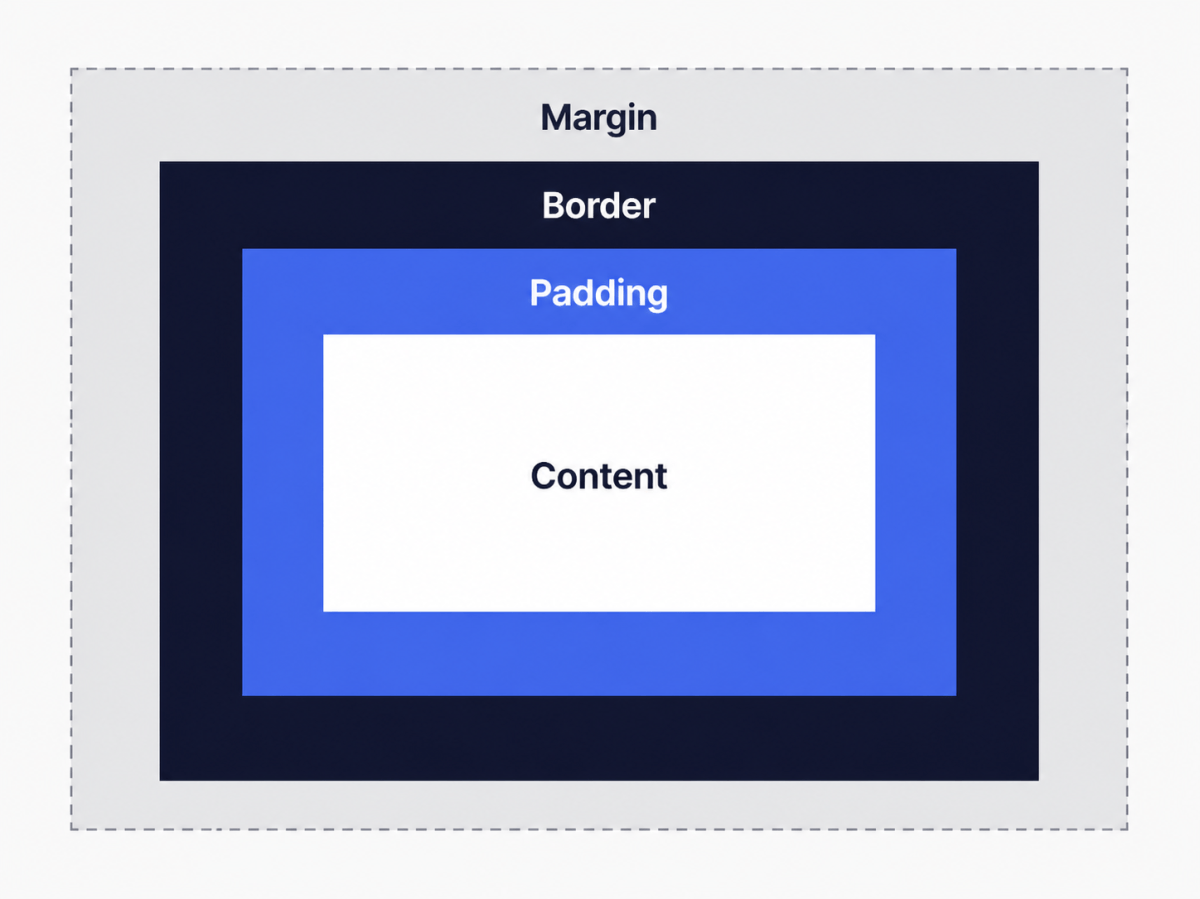
- Content — the text or image inside the element
- Padding — space inside the element, between content and border
- Border — a line around the element
- Margin — space outside the element, between it and other elements
Add this to your CSS and HTML to see it in action:
CSS:
.demo-box {
  width: 300px;
  padding: 20px;
  border: 3px solid #4361ee;
  margin: 32px auto;
  background-color: #e8f0fe;
  color: #1a1a2e;
}
HTML (add inside <main>):
<div class="demo-box">
  This box has 300px content width, 20px padding, and a 3px blue border.
</div>
Right-click the box in your browser → Inspect → find it in the Elements panel. Scroll down to see the box model diagram drawn by DevTools. It shows you, visually, exactly how much space each layer occupies.
🟡 If you’re comfortable with this — try the intermediate approach: The display Property
The display property controls how an element participates in layout. Its default value differs by element, which is the root cause of most beginner confusion.
Block elements (<div>, <p>, <h1>, <section>) take the full width available, stack vertically, and respect all four sides of margin and padding.
Inline elements (<span>, <a>, <strong>) flow with text, take only as much width as their content, and do not respect top and bottom margins the way you would expect.
display: inline-block gives you inline flow with full box model control. Use it for navigation items or buttons that need to sit side by side while accepting padding on all four sides.
display: flex is what you used on the header. It activates the Flexbox layout model — covered in the next section.
The diagnostic shortcut: when something in your CSS is not behaving as expected, check display first. It is responsible for more confusing behavior than any other property.
Part 6: Layout with Flexbox
🟢 Beginner: Why Flexbox Exists
Before Flexbox, centering something vertically in CSS required floats, negative margins, and calculated absolute positioning — all workarounds for a layout system that was never designed for complex UI. Flexbox was introduced to solve this properly.
Flexbox is supported in all modern browsers — Can I Use data shows 99.5%+ global support as of 2026 — and is the layout model you will use most often for arranging items in a row or column.

Add this section to your HTML:
<section id="cards">
  <h2>A Simple Card Layout</h2>
  <div class="card-container">
    <div class="card">
      <h3>Card One</h3>
      <p>HTML gives this card structure.</p>
    </div>
    <div class="card">
      <h3>Card Two</h3>
      <p>CSS makes it look like this.</p>
    </div>
    <div class="card">
      <h3>Card Three</h3>
      <p>Flexbox controls the layout.</p>
    </div>
  </div>
</section>
And this CSS:
.card-container {
  display: flex;
  gap: 24px;
  flex-wrap: wrap;
}

.card {
  flex: 1;
  min-width: 200px;
  background-color: #ffffff;
  border: 1px solid #e0e0e0;
  border-radius: 8px;
  padding: 24px;
  box-shadow: 0 2px 8px rgba(0, 0, 0, 0.06);
}

.card h3 {
  font-size: 1.1rem;
  margin-bottom: 8px;
  color: #1a1a2e;
}
Three cards sit in a row, each taking equal space. When the screen is too narrow to fit them side by side — because of flex-wrap: wrap and min-width: 200px — they stack vertically. That is responsive behavior without a single media query.
🟡 If you’re comfortable with this — try the intermediate approach: The Flexbox Mental Model
When you write display: flex on an element, it becomes a flex container. Its direct children become flex items. Two axes are created: the main axis (horizontal by default) and the cross axis (vertical by default).
On the container:
| Property | What It Does |
|---|---|
flex-direction |
Sets main axis direction. row (default) or column. |
justify-content |
Distributes space along main axis. flex-start, center, space-between, space-evenly. |
align-items |
Aligns items along cross axis. stretch (default), center, flex-start. |
gap |
Consistent spacing between items — replaces margin hacks. |
On the items:
flex: 1 is shorthand for flex-grow: 1; flex-shrink: 1; flex-basis: 0%. It means: grow equally, shrink equally, start from zero. This is what makes each card take equal width in the example above.
The header uses display: flex; justify-content: space-between; align-items: center — title on the left, nav on the right, both vertically centered. Three properties. Before Flexbox, this required a different approach entirely.
Source: MDN Web Docs — CSS Flexible Box Layout (developer.mozilla.org/en-US/docs/Web/CSS/CSS_flexible_box_layout)
Part 7: Making It Responsive
🟢 Beginner: What Responsive Design Means
In 2024, mobile devices accounted for approximately 63% of global web traffic, according to StatCounter GlobalStats. A webpage that only looks good on a desktop is broken for the majority of people who visit it.
Responsive design means your layout adapts to different screen sizes. The main CSS tool for this is the media query — a conditional rule that only applies styles when a certain condition is met.
Add this to the bottom of your style.css:
@media (max-width: 640px) {
  header {
    flex-direction: column;
    text-align: center;
    gap: 16px;
    padding: 24px 20px;
  }

  nav a {
    margin-left: 12px;
    margin-right: 12px;
  }

  h2 {
    font-size: 1.4rem;
  }

  main {
    margin: 32px auto;
    padding: 0 16px;
  }
}
Resize your browser window below 640 pixels. The header stacks vertically instead of sitting side by side. Padding tightens. Text scales down slightly. The page is now usable on a phone.
@media (max-width: 640px) reads: apply these styles only when the viewport is 640 pixels wide or narrower. The width at which your layout changes is called a breakpoint.
🟡 If you’re comfortable with this — try the intermediate approach: Write Mobile-First CSS
There are two ways to write responsive CSS. The approach above — desktop styles first, overrides for smaller screens — is desktop-first. It works, but it is not optimal.
Mobile-first means you write base styles for the smallest screen and add complexity for larger screens using min-width queries.
/* Mobile-first: base styles are for the smallest screen */
header {
  flex-direction: column;
  padding: 24px 20px;
}

/* Add layout complexity for wider screens */
@media (min-width: 641px) {
  header {
    flex-direction: row;
    padding: 24px 40px;
  }
}
Two reasons mobile-first is better.
First, Google uses mobile-first indexing — it crawls and ranks the mobile version of your page. A mobile-first CSS architecture means your HTML structure is already optimized for the version Google actually evaluates. This is documented in Google Search Central.
Second, performance. CSS is render-blocking — the browser parses your entire stylesheet before rendering. On mobile connections, shipping a desktop stylesheet with a cascade of overrides is wasteful. Mobile-first means mobile users parse only what they need.
Standard breakpoints aligned with real device widths:
| Breakpoint | Common Target |
|---|---|
| Default (no query) | Mobile: under 640px |
min-width: 640px |
Large phones / small tablets |
min-width: 768px |
Tablets |
min-width: 1024px |
Laptops |
min-width: 1280px |
Desktop |
Source: Google Search Central — Mobile-first indexing best practices (developers.google.com/search/docs/crawling-indexing/mobile/mobile-sites-mobile-first-indexing)
Part 8: Your Complete Page
Here is the clean, final version of both files.
index.html:
<!DOCTYPE html>
<html lang="en">
<head>
<meta charset="UTF-8" />
<meta name="viewport" content="width=device-width, initial-scale=1.0" />
<title>My First Website | Built with HTML & CSS</title>
<link rel="stylesheet" href="style.css" />
</head>
<body>
<header>
<h1>My First Website</h1>
<nav>
<a href="#about">About</a>
<a href="#skills">Skills</a>
<a href="#cards">Cards</a>
<a href="#contact">Contact</a>
</nav>
</header>
<main>
<section id="about">
<h2>About Me</h2>
<p>I'm building my first webpage using HTML and CSS. This is where
I'd write a short introduction about who I am and what I'm working on.</p>
</section>
<section id="skills">
<h2>What I'm Learning</h2>
<ul>
<li>HTML structure and semantic elements</li>
<li>CSS styling and layout</li>
<li>The CSS box model</li>
<li>Flexbox for layouts</li>
<li>Responsive design with media queries</li>
</ul>
</section>
<section id="cards">
<h2>A Simple Card Layout</h2>
<div class="card-container">
<div class="card">
<h3>Card One</h3>
<p>HTML gives this card structure.</p>
</div>
<div class="card">
<h3>Card Two</h3>
<p>CSS makes it look like this.</p>
</div>
<div class="card">
<h3>Card Three</h3>
<p>Flexbox controls the layout.</p>
</div>
</div>
</section>
<section id="contact">
<h2>Get in Touch</h2>
<p>You can reach me at
<a href="mailto:hello@example.com">hello@example.com</a>
</p>
</section>
</main>
<footer>
<p>© 2026 My First Website</p>
</footer>
</body>
</html>
style.css:
/* === Reset === */
*, *::before, *::after {
  box-sizing: border-box;
  margin: 0;
  padding: 0;
}

/* === Base === */
body {
  font-family: -apple-system, BlinkMacSystemFont, 'Segoe UI', Roboto, sans-serif;
  font-size: 16px;
  line-height: 1.6;
  color: #1a1a2e;
  background-color: #f8f9fa;
}

/* === Header === */
header {
  background-color: #1a1a2e;
  color: #ffffff;
  padding: 24px 40px;
  display: flex;
  align-items: center;
  justify-content: space-between;
}

header h1 {
  font-size: 1.5rem;
  font-weight: 700;
}

nav a {
  color: #ffffff;
  text-decoration: none;
  margin-left: 24px;
  font-size: 0.95rem;
  opacity: 0.85;
  transition: opacity 0.2s ease;
}

nav a:hover {
  opacity: 1;
}

/* === Main === */
main {
  max-width: 800px;
  margin: 48px auto;
  padding: 0 24px;
}

section {
  margin-bottom: 56px;
}

h2 {
  font-size: 1.75rem;
  color: #1a1a2e;
  margin-bottom: 16px;
  padding-bottom: 8px;
  border-bottom: 3px solid #4361ee;
}

p {
  margin-bottom: 16px;
  color: #333;
}

ul {
  padding-left: 20px;
}

li {
  margin-bottom: 8px;
  color: #333;
}

a {
  color: #4361ee;
}

/* === Cards === */
.card-container {
  display: flex;
  gap: 24px;
  flex-wrap: wrap;
}

.card {
  flex: 1;
  min-width: 200px;
  background-color: #ffffff;
  border: 1px solid #e0e0e0;
  border-radius: 8px;
  padding: 24px;
  box-shadow: 0 2px 8px rgba(0, 0, 0, 0.06);
}

.card h3 {
  font-size: 1.1rem;
  margin-bottom: 8px;
  color: #1a1a2e;
}

/* === Footer === */
footer {
  background-color: #1a1a2e;
  color: #aaa;
  text-align: center;
  padding: 20px;
  font-size: 0.875rem;
}

/* === Responsive === */
@media (max-width: 640px) {
  header {
    flex-direction: column;
    text-align: center;
    gap: 16px;
    padding: 24px 20px;
  }

  nav a {
    margin-left: 12px;
    margin-right: 12px;
  }

  h2 {
    font-size: 1.4rem;
  }

  main {
    margin: 32px auto;
    padding: 0 16px;
  }
}
What You Built — and What to Learn Next
You started with two empty files. You now have a working webpage with a semantic HTML structure, a styled Flexbox header, multiple content sections, a responsive card layout, and mobile behavior. Every line you can explain.
Here is the honest next step sequence.
If the beginner sections felt comfortable, your next move is CSS Flexbox in more depth — specifically building two-column layouts and centered hero sections. Then CSS Grid, which handles two-dimensional layouts Flexbox was not designed for.
→ [CSS Flexbox vs. Grid: When to Use Each Layout Method — coming soon]
If the intermediate sections made sense, start building a multi-page site. Add a projects page. Wire up the navigation. Make it something you would actually show someone. The gap between “I followed a tutorial” and “I can build things” closes fastest by shipping something real.
→ [Responsive Web Design Explained: Media Queries & Mobile-First CSS — coming soon]
The next article in this series covers JavaScript — what it does that HTML and CSS cannot, and how to start using it without immediately drowning in frameworks.
→ [JavaScript for Beginners: Variables, Functions & DOM Explained — coming soon]
Frequently Asked Questions
Do I need to memorize all the CSS properties?
No. Professional developers look things up constantly. What matters is knowing what is possible — so you know what to search for — and understanding the core concepts well enough to apply them without reading a tutorial. The rest comes from building things.
Is HTML and CSS enough to get a job?
HTML and CSS alone are not enough for most developer roles. But they are the necessary foundation for every frontend role. Employers evaluating junior developers look for genuine understanding of the fundamentals, not just framework familiarity. Getting these right before adding JavaScript makes everything that follows significantly easier.
What is the difference between HTML and HTML5?
HTML5 is the current version of the HTML specification, maintained by the WHATWG (Web Hypertext Application Technology Working Group) at html.spec.whatwg.org. It introduced semantic elements, native audio and video support, the Canvas element, and major improvements to forms. When people say “HTML” today, they almost always mean HTML5.
How long does it take to learn HTML and CSS?
Enough to build basic pages: one to three weeks of consistent daily practice. Enough to build professional-quality layouts without looking everything up: three to six months. Enough to be fast and confident: a year of building real projects. The timeline compresses significantly when you are building something you actually want to exist.
Should I use a CSS framework like Bootstrap or Tailwind?
Not yet. Frameworks are built on top of CSS. If you do not understand the underlying CSS, you are debugging a layer of abstraction without understanding what it is doing. Spend two to three months with raw CSS first. After that, Tailwind CSS is currently the most widely adopted utility-first framework for new projects.
What does href stand for in a link tag?
HyperText REFerence. It is the attribute that tells the browser where a link goes — a full URL for external pages, a relative path for pages within your site, or an id with a # prefix for sections within the same page. The navigation links in this guide use that last pattern.
Sources
- World Wide Web Consortium (W3C). HTML5 Specification. w3.org/TR/html52/
- WHATWG. HTML Living Standard. html.spec.whatwg.org
- World Wide Web Consortium (W3C). Web Content Accessibility Guidelines (WCAG) 2.1. w3.org/TR/WCAG21/
- W3C. CSS Cascading and Inheritance Level 4. w3.org/TR/css-cascade-4/
- MDN Web Docs. CSS Flexible Box Layout Module. developer.mozilla.org/en-US/docs/Web/CSS/CSS_flexible_box_layout
- Google Web Developers. Critical Rendering Path. web.dev/critical-rendering-path/
- Google Search Central. Mobile-first indexing best practices. developers.google.com/search/docs/crawling-indexing/mobile/mobile-sites-mobile-first-indexing
- Google Search Central. How Google Search Works. developers.google.com/search/docs/fundamentals/how-search-works
- Nielsen Norman Group. Pernice, K., & Nielsen, J. How People Read on the Web: The Eyetracking Evidence. nngroup.com
- StatCounter GlobalStats. Mobile vs Desktop Market Share Worldwide, 2024. gs.statcounter.com
- National Federation of the Blind. Blindness Statistics. nfb.org/resources/blindness-statistics
- Can I Use. Flexbox browser support. caniuse.com/flexbox
All tools referenced in this article (VS Code, Live Server extension) are free as of May 2026. All code was written and tested by the author.
About the Author: Daljit Singh is an independent cybersecurity researcher-consultant & Director at Nexsage Technologies with more than a decade of experience building production systems. He is completing an MSc in Cybersecurity at IU International University of Applied Sciences. At BasicWeb, he writes for people who want to understand what they are building, not just copy code until something works. This is his small attempt to give back to the community by sharring what he has learned over the years.
Subscribe Newsletter
Get notified when future articles are published